Prepare Your Excel File
Download the income statement sample file
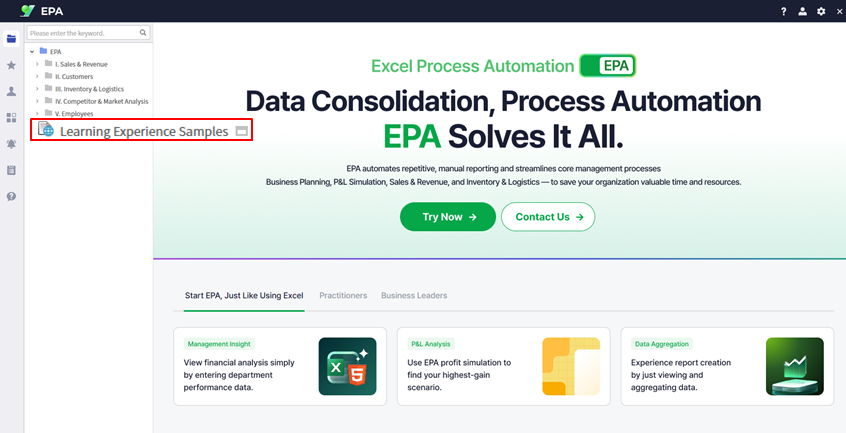
Download the income statement sample file from Learning Experience Samples. This file contains multiple sheets structured for dynamic web reporting with year-based filtering.
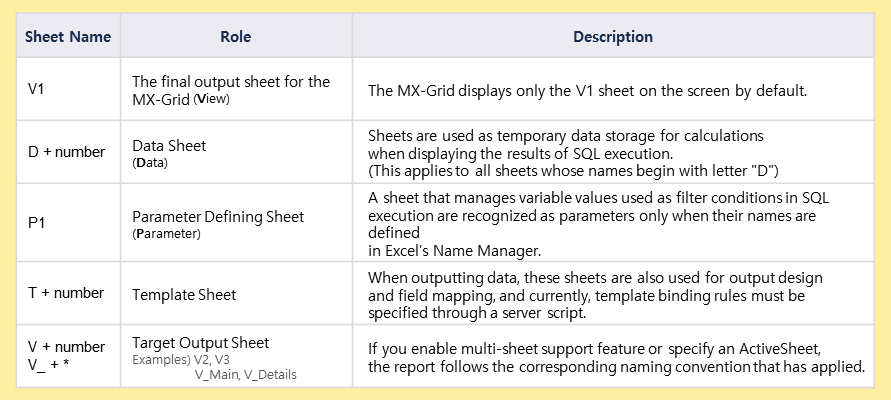
Excel Sheet Naming
Understand the V/D/P sheet naming conventions
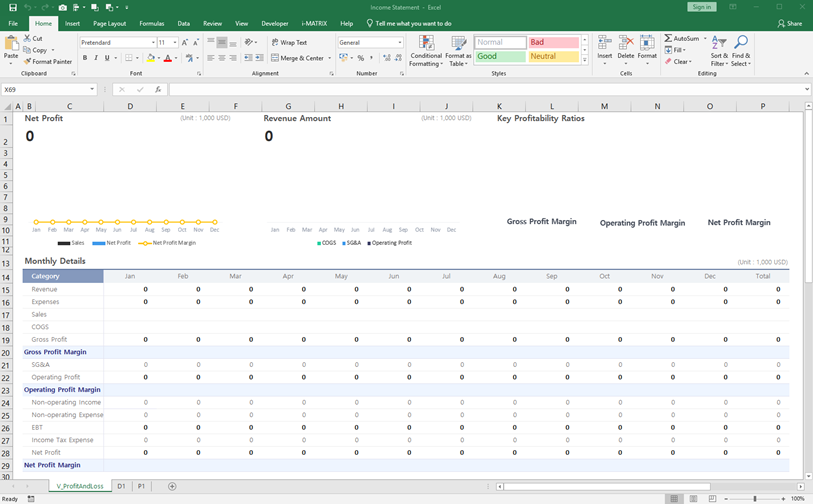
The V Sheet is the display sheet that users see in the web report.
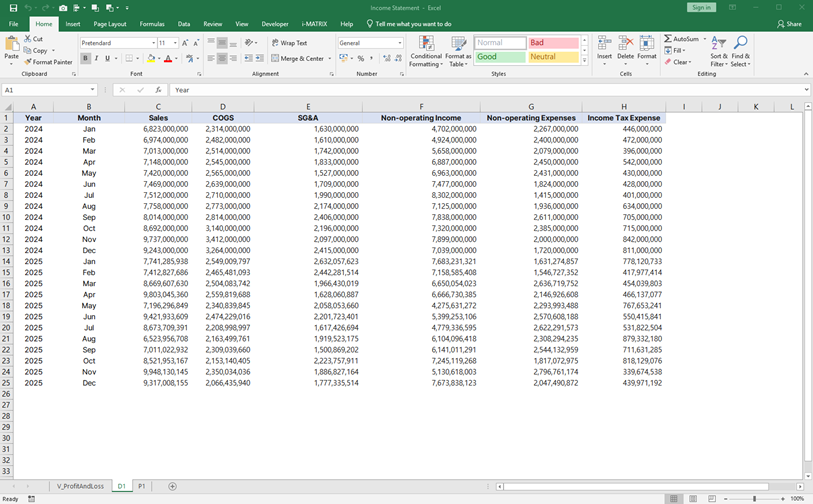
The D Sheet contains the raw data source that feeds into the display.
The P Sheet defines the variables and parameter definitions used for filtering.
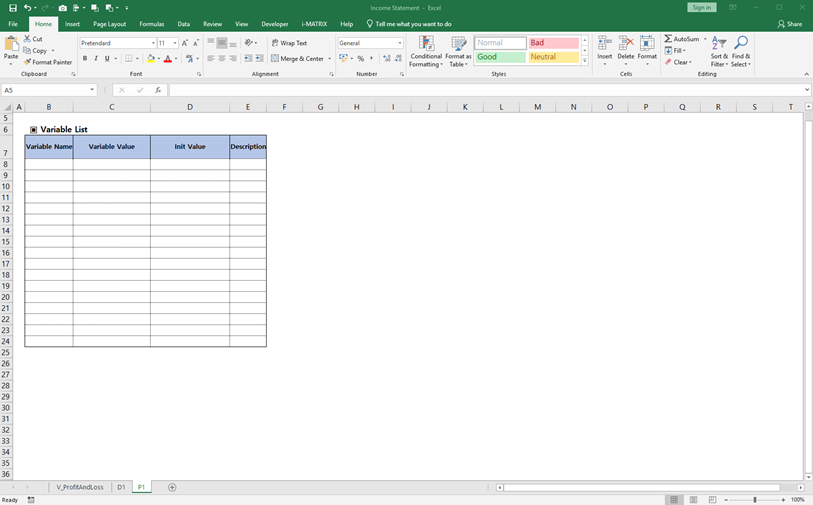
Review the complete sheet structure overview to understand how all three sheets work together.
Tip: The V/D/P naming convention is a standard pattern in i-AUD: V for View, D for Data, P for Parameters.
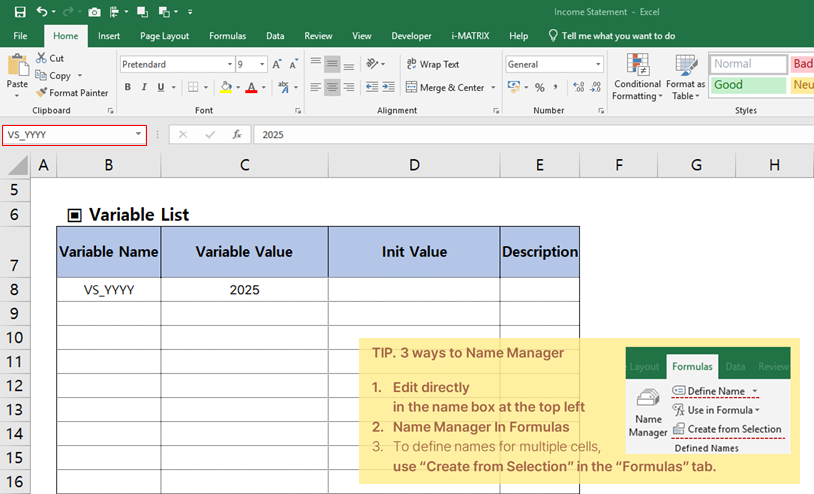
Set Variables & Connect Data
Configure Year variable with Name Manager and SUMIFS formulas
Configure the Year variable using Excel's Name Manager.
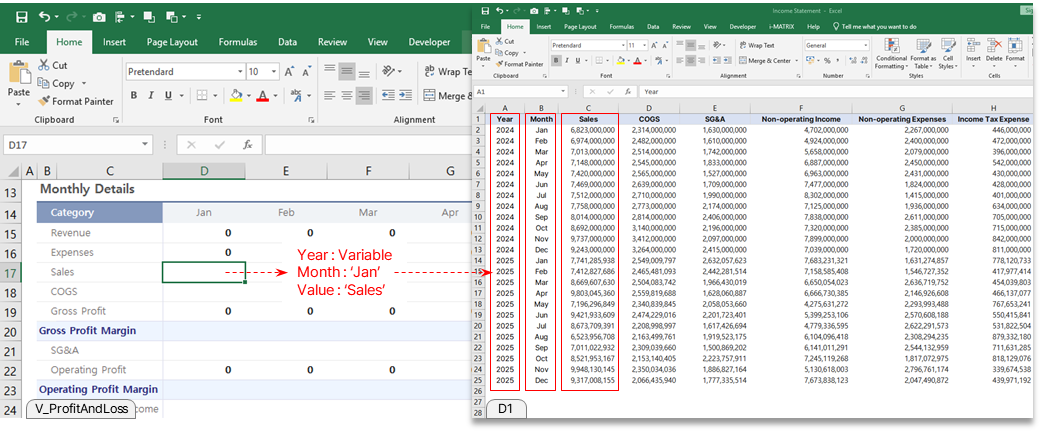
Set up SUMIFS formulas to connect the data sheet to the display sheet, enabling dynamic data filtering by year.
Convert Using i-AUD Designer
Drag & drop Excel file and configure docking
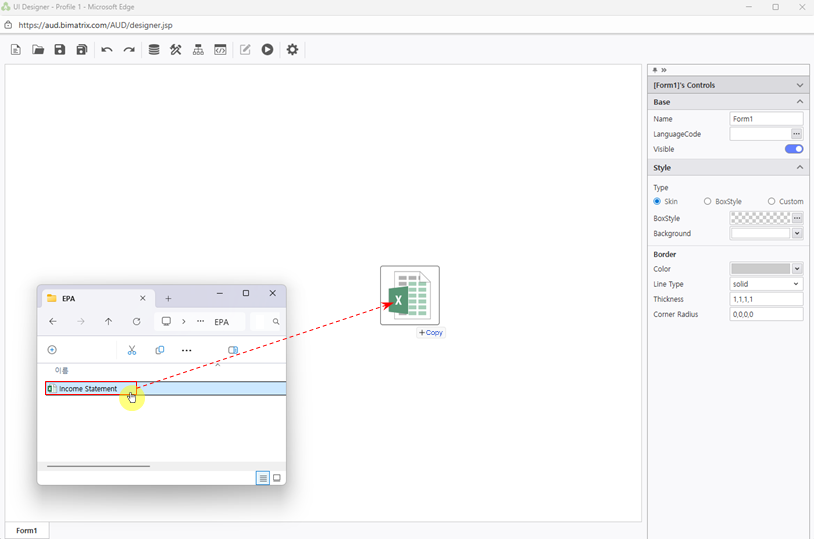
Open the i-AUD Designer and drag & drop your prepared Excel file into the workspace.
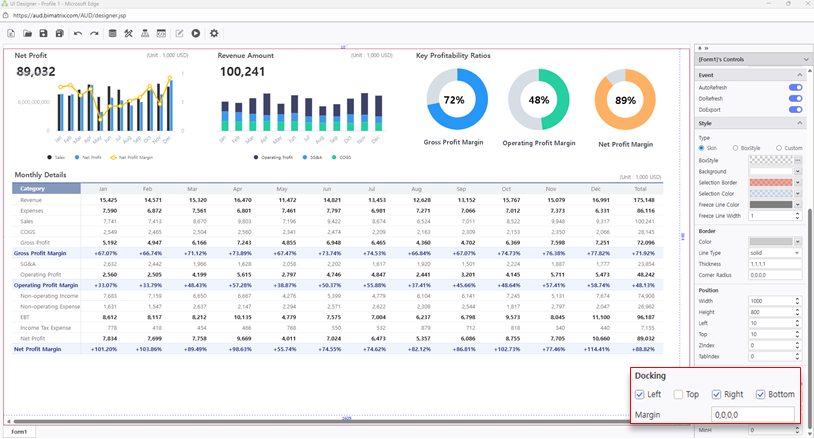
Configure the Docking settings to ensure the report fills the available space properly.
Configure Search Filter
Add Year label, Calendar, and Refresh button
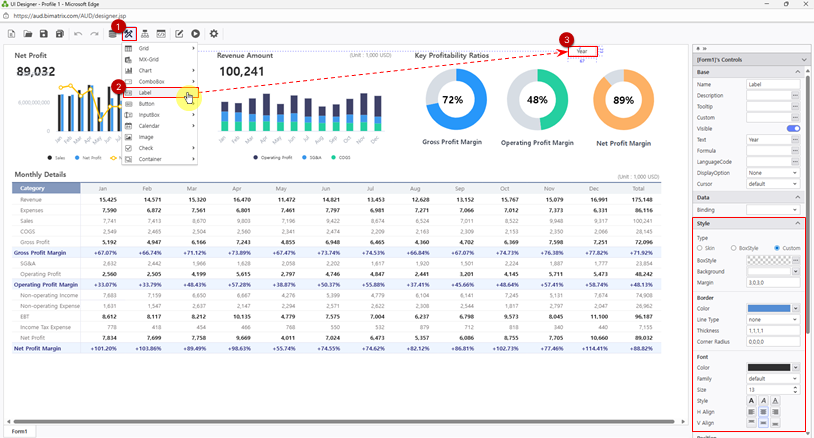
Place a Year label to identify the filter area on the report.
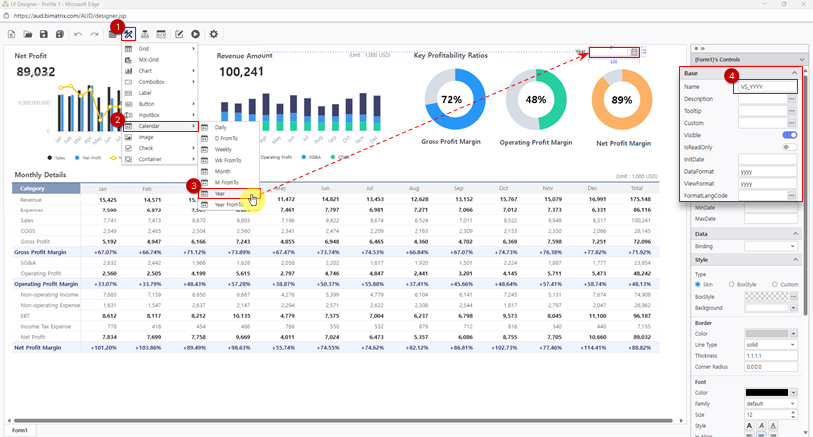
Add a Calendar picker for year selection so users can dynamically filter the income statement data.
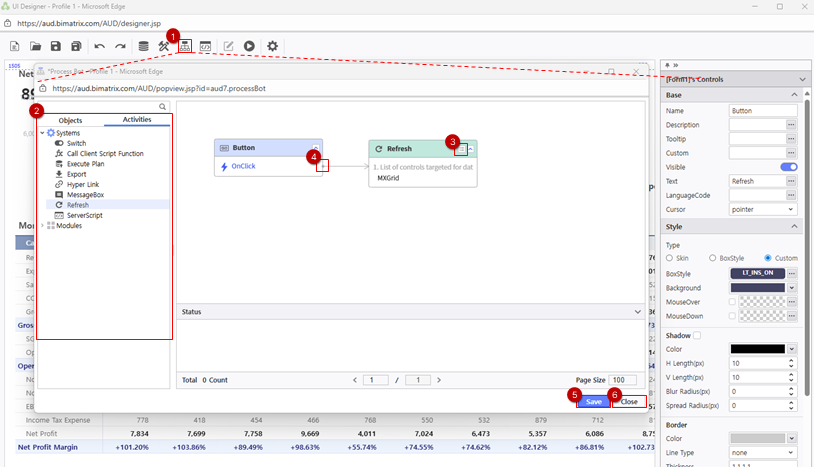
Add a Refresh button so users can reload the data after selecting a new year.
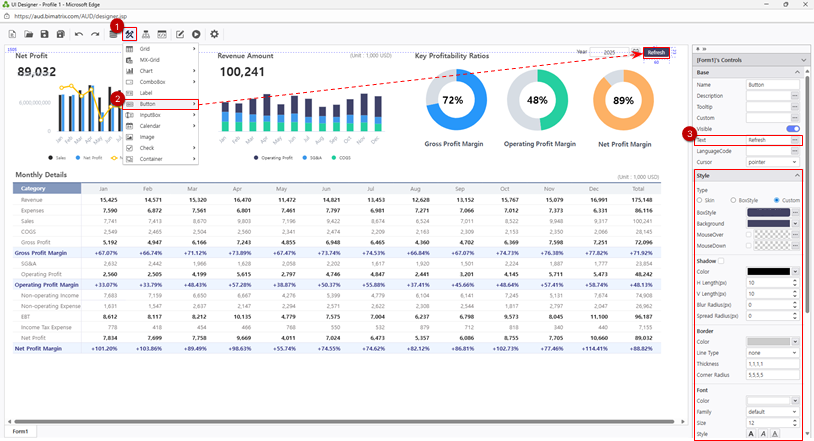
Verify the complete filter configuration is working as expected.
Tip: The Year Calendar + Refresh button combination allows users to switch between different fiscal years instantly.
Save Your Report
Save to My Folder and verify the report
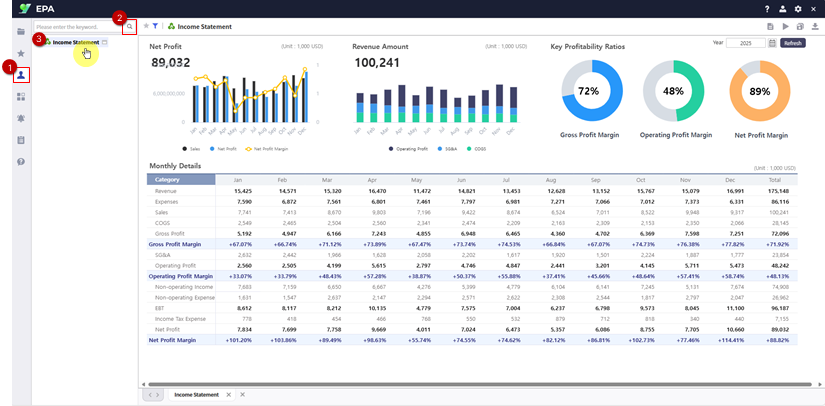
Save your completed income statement report to My Folder.
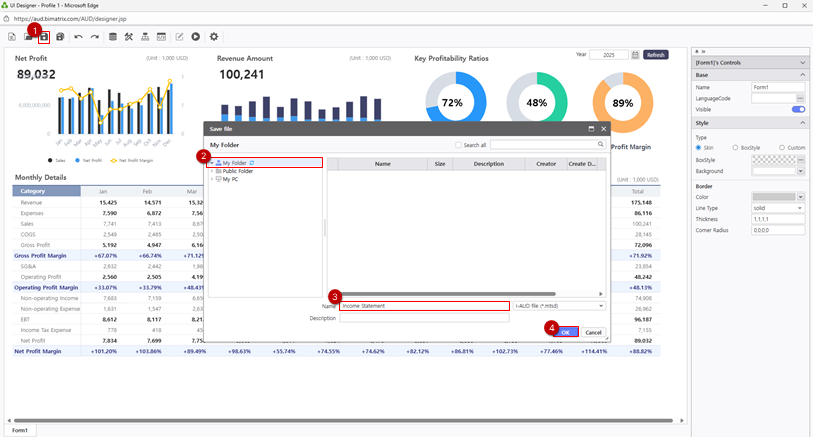
Verify the report displays correctly with the year filter. Select different years and click Refresh to confirm the data updates dynamically.