Prepare Your Excel File
Download the sample competitor financial statements Excel file
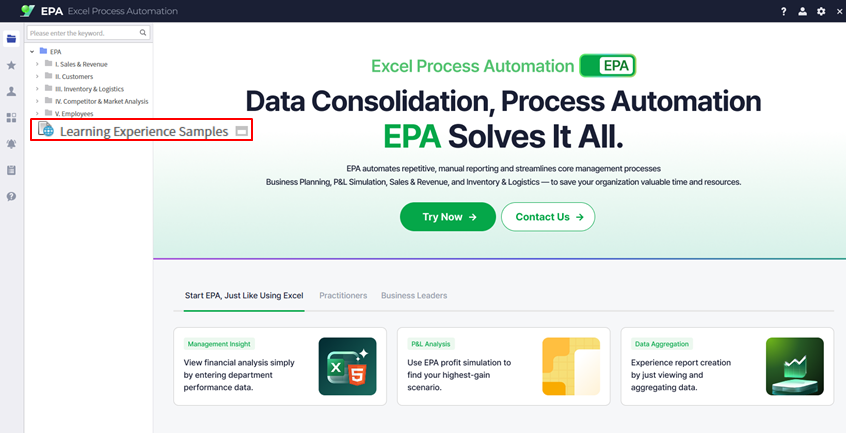
Download the sample Excel file containing competitor financial statement data from Learning Experience Samples. Review the file structure to understand the data layout before conversion.
Tip: Reviewing the Excel file structure beforehand helps you anticipate how the data will appear in the web report and plan any adjustments needed.
Convert Excel to Web
Launch i-AUD Designer and import the financial data
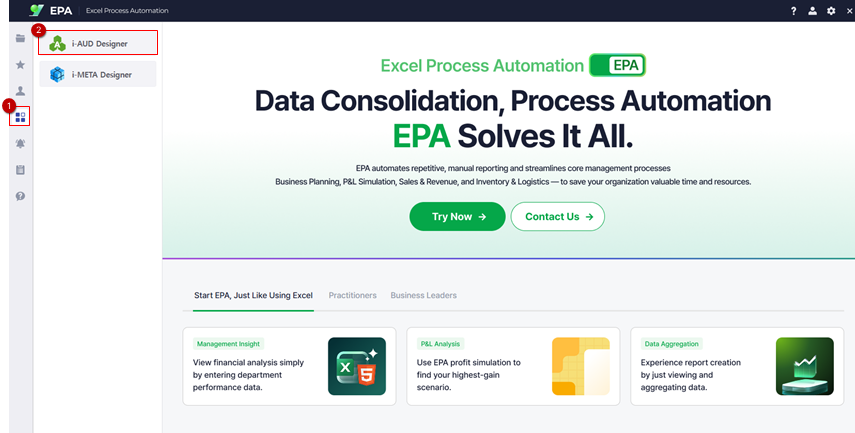
Launch i-AUD Designer via [Menu] > [Tool].
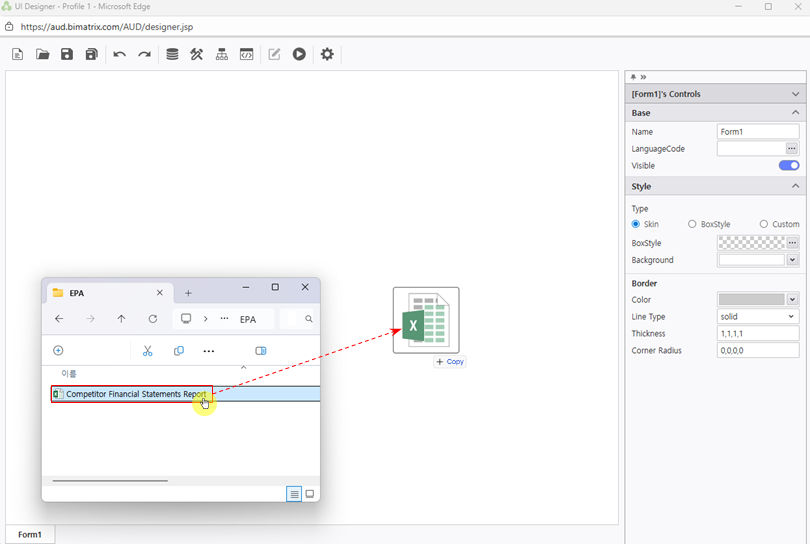
Drag & drop the Excel file into the Designer workspace. The financial statement data will be automatically converted to a web-viewable format.
Tip: The drag & drop conversion preserves your Excel formatting, including merged cells and number formats commonly used in financial statements.
Adjust Report Layout
Configure docking settings for optimal display
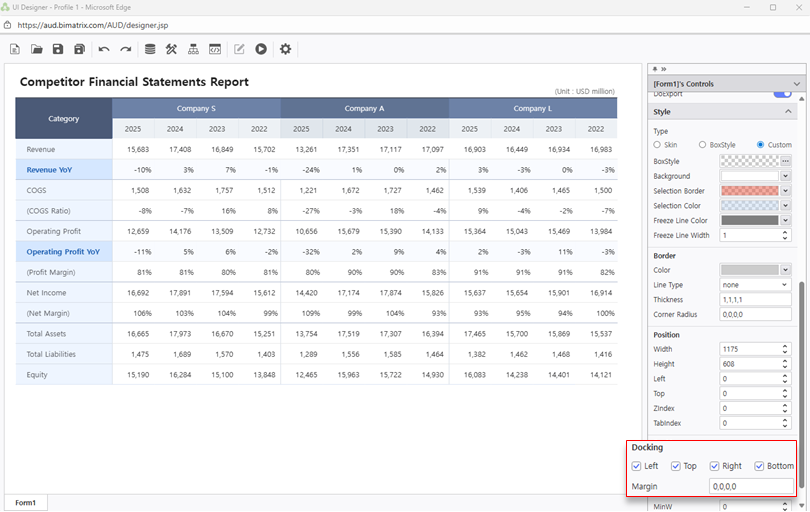
Configure Docking to Left / Top / Right / Bottom to fill the entire viewport. Review the layout to ensure all financial data columns are visible and properly aligned.
Tip: Full docking (Left/Top/Right/Bottom) ensures the financial statement fills the entire screen, making it easy to compare competitor data side by side.
Save Your Report
Save and verify your completed financial statements report
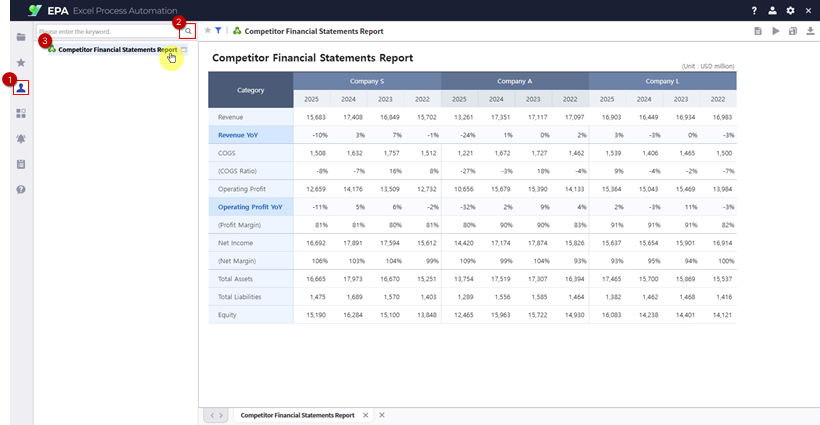
Save your report to My Folder.
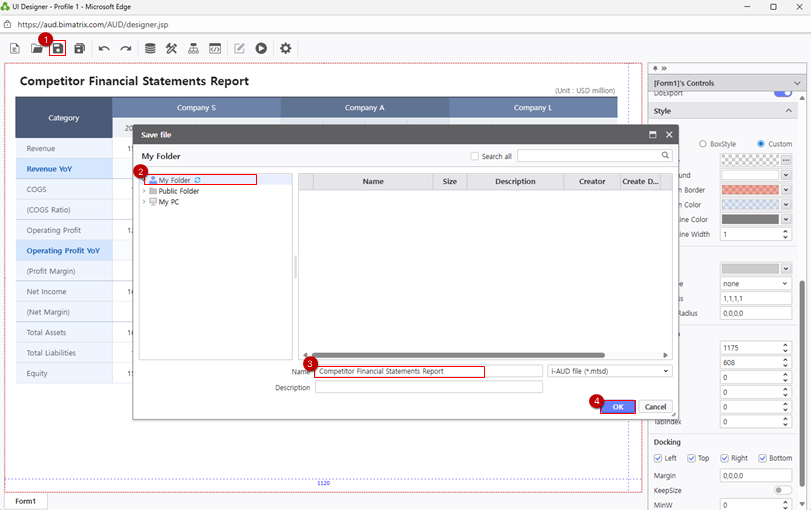
Navigate to [Menu] > [Individual] and click the Search (magnifying glass icon) to refresh the report list and confirm your saved report appears.